

Computer graphics Assignment 4
In this assignment you will write a program that draws a simple 3D scene and allows you to move around in the scene. Positioning the objects and changing position of the camera will require use of modeling, viewing and projection transformations. We recommend that you read Chapter 3 of OpenGL Programming Guide which contains a detailed description of OpenGL transformations and corresponding commands.
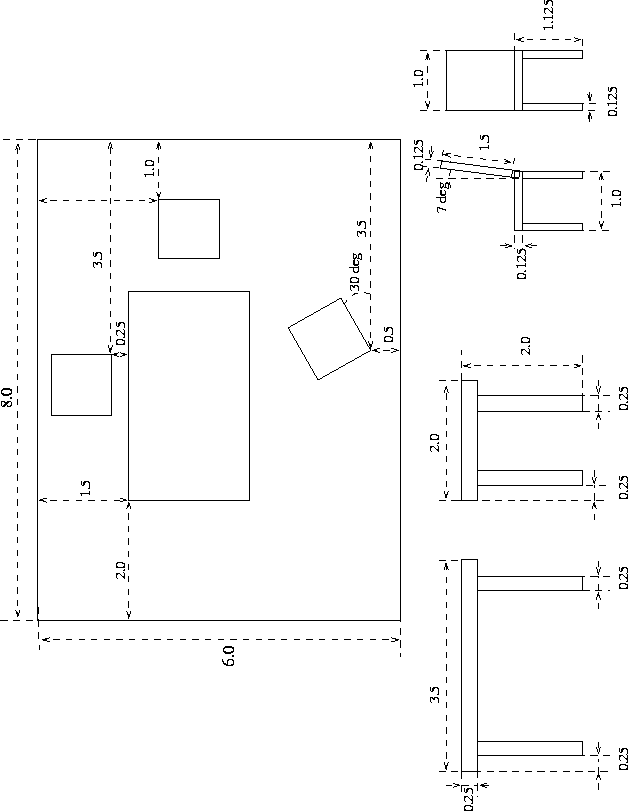
Your program should display a scene, consisting of a table and 4 chairs standing on a rectangle representing the floor. (you can add more objects if you like). The positions and dimensions of the objects are shown in Figure 2.
Initially, set the camera into the position 4 units above the floor, 4 units to the left and 4 units perpendicular to the side of the table which has the rotated chair next to it. The viewing direction should be towards the center of the table. Make sure that the scene fills most of the picture by choosing appropriate field of view.
Create a pop-up menu that would allow you to choose the type of camera motion. Implement the following options:
Once the type of camera motion is chosen, when the user clicks the left button, the camera starts moving, the second click stops it, another click starts it again. The type of motion can be changed at any time; the trajectory should stay continuous, the last position of the camera before the change becomes the first position after the change.
Just a working version of the program and the source code.
Do not use the following commands in this assignment: any aux or glut commands for drawing objects; the gluLookAt command. For matrix operations, use only glLoadMatrix, glMultMatrix, glPushMatrix(), and glPopMatrix(). Do not use glTranslate, glScale and glRotate. Implement their functionality using the formulas discussed at the lecture. However, we recommend that you use these commands while debugging the scene and camera motion, and, once everything is working, replace them with your own equivalent functions.
Trying to calculate positions of all vertices of all objects in the scene by hand is not a very good idea; also, in that case, if you would want to move something, it would be rather difficult.
Typically, one builds scenes like this hierarchically as explained at the lectures. First, notice that all objects can be built out of boxes. Write a function that draws a box (we ask you not to use the aux or glut library call, but feel free to use it for debugging). Then write functions that draw the table and the chair, setting up proper transforms and calling the function that draws boxes to draw various parts of the object. Finally, write a function that draws the whole scene.
Make as few preliminary calculations on paper as possible; try to structure your program in such a way that all objects and their positions are computed directly from the data in the picture, without any manual calculations. Avoid having too many specific dimensions in your program: try to parametrize each object by several numbers; for example, the all you need to specify for the table, is the length of legs, the thickness of the lid, the size of the cross-section of a leg, and the distance from the leg to the edge.
Start with implementing the scene; implement camera transformations last. While debugging the scene, use simple camera positions and orientations (e.g. looking along X, Y and Z axes). By default, the camera can be thought of as located at zero looking along negative Z axis. To make the scene visible, simply add
glTranslatef(0.0f,0.0f,-5.0f);
in the beginning of your drawing routine. To get two other views, add
glTranslatef(0.0f,0.0f,-5.0f);
glRotatef(-90,1,0,0);
and
glTranslatef(0.0f,0.0f,-5.0f);
glRotatef(-90,1,0,0);
glRotatef(-90,0,1,0);
It is useful to be able to see the coordinate system; for debugging purposes, draw thin long boxes of different colors along the positive directions of the axes.
To see the scene, we need a light source; if we do not put a light somewhere, the polygons of the scene are still visible, but they are flat-shaded i.e. all pixels in the image of any polygon have the same color. Pictures like this do not look very interesting, especially if all polygons have the same color (default is white). To make things more interesting, either make boxes of different colors, using glColor3f() function calls or use a single light We will discuss lighting in greater detail later; for this assignment, add the following OpenGL calls after you create your GLUT window, but before you call the glutMainLoop function; this will add two lights, red and blue, to your scene.
    GLfloat diffuse[] = {0.8, 0.8, 0.8, 1.0};
    GLfloat lgt1_diffuse[] =  { 0.05f, 0.05f, 0.6f, 1.0f };
    GLfloat lgt2_diffuse[] =  { 0.6f, 0.05f, 0.05f, 1.0f };
    GLfloat light_pos1[] =   { 5.0f, 5.0f, 0.0f, 1.0f };
    GLfloat light_pos2[] =   { -5.0f, 5.0f, 0.0f, 1.0f };

    glEnable(GL_LIGHTING);
    glEnable(GL_DEPTH_TEST);
    glShadeModel(GL_SMOOTH);
    glEnable(GL_LIGHTING);
    glMaterialfv( GL_FRONT, GL_DIFFUSE, diffuse);

    glLightfv(GL_LIGHT1, GL_POSITION,light_pos1);
    glLightfv(GL_LIGHT1, GL_DIFFUSE, lgt1_diffuse);
    glLightfv(GL_LIGHT2, GL_POSITION,light_pos2);
    glLightfv(GL_LIGHT2, GL_DIFFUSE, lgt2_diffuse);
    glEnable(GL_LIGHT1);
    glEnable(GL_LIGHT2);
To make the lighting work, you also need to specify normals for each polygon. Here is an example of the code that defines a unit square in the XY plane with normal pointing along Z:
glBegin(GL_POLYGON);
glNormal3f(0.0f, 0.0f, 1.0f);
glVertex3f(0.0f, 0.0f, 0.0f);
glVertex3f(1.0f, 0.0f, 0.0f);
glVertex3f(1.0f, 1.0f, 0.0f);
glVertex3f(0.0f, 1.0f, 0.0f);
glEnd();